AI image template: Photo to Pencil Sketch
Idoli.ai Template

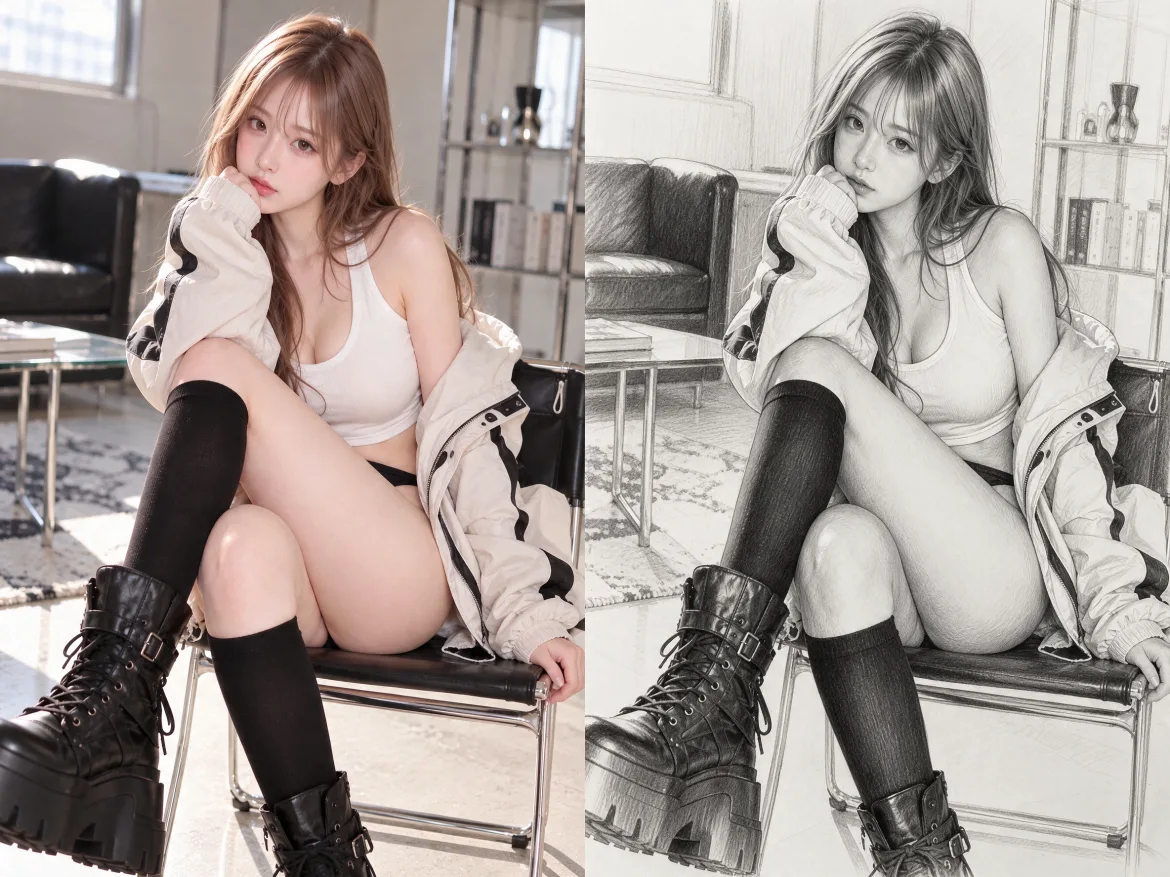
Photo to Pencil Sketch

Turn a photo into a graphite pencil sketch online. Sign up for 20 credits and create two images at 10 credits each.

Template prompt

Turn the uploaded photo into a graphite pencil sketch. Use the photo as the only reference and preserve the recognizable identity of the person, pet, or object, along with the original pose, body proportions, framing, and main composition. Keep the same clothing, hairstyle, facial features, and arrangement of objects; do not add, remove, or move anything in the scene. Build the drawing with natural pencil line work, clean contours, and varied line weight. Use loose hatching in open areas, cross-hatching in the mid-tones, and soft directional shading that follows the form of the face, fabric, fur, or architecture. Use subtle paper texture, leave the brightest areas as paper white, and build the deepest shadows with layered strokes rather than flat black fill. Follow the light direction and shadow pattern of the original photo. Keep the small details that carry identity, including the shape of the eyes, the line of the jaw, the direction of hair or fur, and the edges of clothing, leaves, or buildings. Indicate the background with fewer strokes and lighter tones while keeping its main shapes and relative scale, so the setting remains recognizable. Avoid smooth airbrush gradients, photorealistic rendering, colored marks, and heavy ink outlines. Return one finished pencil sketch on clean paper, preserving the original framing, with no border, no text, no watermark, and no side-by-side comparison panels.
Pre-configured

📷 image4:3photo to pencil sketch

About this template

This photo to pencil sketch template is designed to turn a single uploaded photo into a graphite drawing. It works for portraits, pets, still-life objects, and architecture. The prompt is designed to preserve the subject's identity, pose, body proportions, and main composition, then rebuild the image with pencil line work, cross-hatching, and soft shading. The goal is a pencil-style interpretation of your photo rather than a new scene with different people or objects.

Open the template and select Use Template. In image generation, upload the photo you want to convert, check the prefilled prompt, and generate. You can edit the prompt before generating; the default already describes the line quality, shading, and how much background to keep. Download the version you want to keep. This edit does not require creating or selecting a saved character.

Photos with a clear subject and normal exposure usually work best. For portraits, choose a shot where the eyes, eyebrows, and mouth are visible and the face is not covered by a hand or a prop. For pets, clear fur direction and a visible head outline are more useful than an extreme close-up of the nose. Architecture and still life benefit from clear edges and a subject that fills a reasonable share of the frame. Severe blur, underexposure, a tiny subject, or a busy background can make the result less predictable.

You can steer the result with short changes to the prompt. Ask for thinner, lighter strokes and less shading when the drawing feels too heavy. Ask for deeper shadows and stronger contrast when the sketch looks washed out. Ask for denser cross-hatching when you want more visible texture in the mid-tones. Ask for a simpler background when the setting competes with the subject, and ask to emphasize the eyes, fur, or building lines when one detail needs to stay clear. Change one direction at a time so you can compare the results.

New accounts receive 20 free credits. The available image generation models cost 10 credits per generation, so the starting balance covers two image generations. A failed generation does not deduct credits. Downloads have no watermark, and the generated sketch can be used commercially, provided you hold the rights to the original photo.

Results vary with the source photo and the prompt. Check the face, silhouette, and small details before publishing or using the image commercially. The output is an AI-generated interpretation of your photo, not an exact reproduction of the original or a promise of identical results every time.

Similar templates

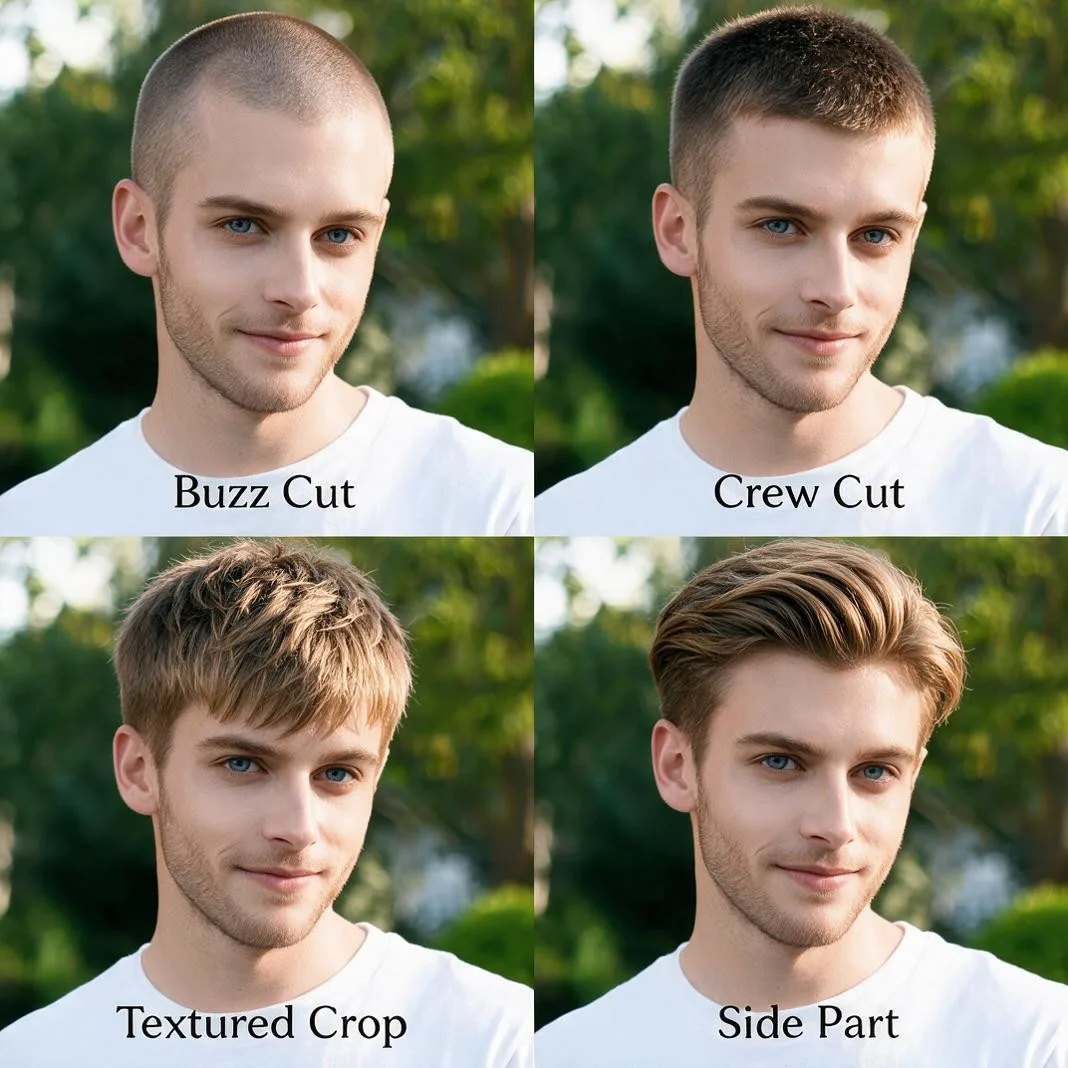
Virtual Haircut for Men: Try 4 Styles on Your Photo

Compare four men’s haircuts on the same photo before deciding what to ask for at the barber.

Unblur Photos: Sharpen a Soft Portrait

Improve the clarity of a slightly blurry portrait while aiming to preserve the person's features, natural texture, and original photographic atmosphere.

Create Funny Pictures from Photos: Cartoon Caricature

Turn a portrait into a funny cartoon caricature with an oversized head, expressive features, and recognizable details from the original photo.

Full Body Gender Swap AI: A Feminine Fashion Makeover

Reimagine an adult male character as a female counterpart in a head-to-toe fashion portrait, with recognizable facial cues and a coordinated outfit.

AI Ugly Christmas Sweater: Reindeer Party Look

Try a festive sweater with an oversized reindeer motif, raised pom-pom details, and deliberately clashing Christmas patterns on your saved character.