
To explore a fuller bust with AI, start with a clear adult reference photo and describe the change you want. In Idoli, you can request a moderate adjustment, review the clothing and surrounding proportions, and refine the result with short follow-up instructions.
This walkthrough covers photo-based body visualization first, followed by an optional workflow for adult character design.
Results may vary; check the face, clothing, and surrounding proportions against your reference.
Two Reasons to Explore a Different Silhouette
For personal visualization, you might want to see a fuller bust in a familiar outfit before deciding whether you even like that direction. Starting with your own photo keeps the exploration connected to your existing styling and proportions. You can compare a subtle adjustment with a more noticeable one without assuming that either is the preferred result.
For adult character design, the goal may be a different costume silhouette or a new version of an existing character. You can explore the bust proportions while keeping the face, hairstyle, palette, and costume identity, then judge whether the change supports the character's intended appearance.
Start with a Reference That Shows the Shape
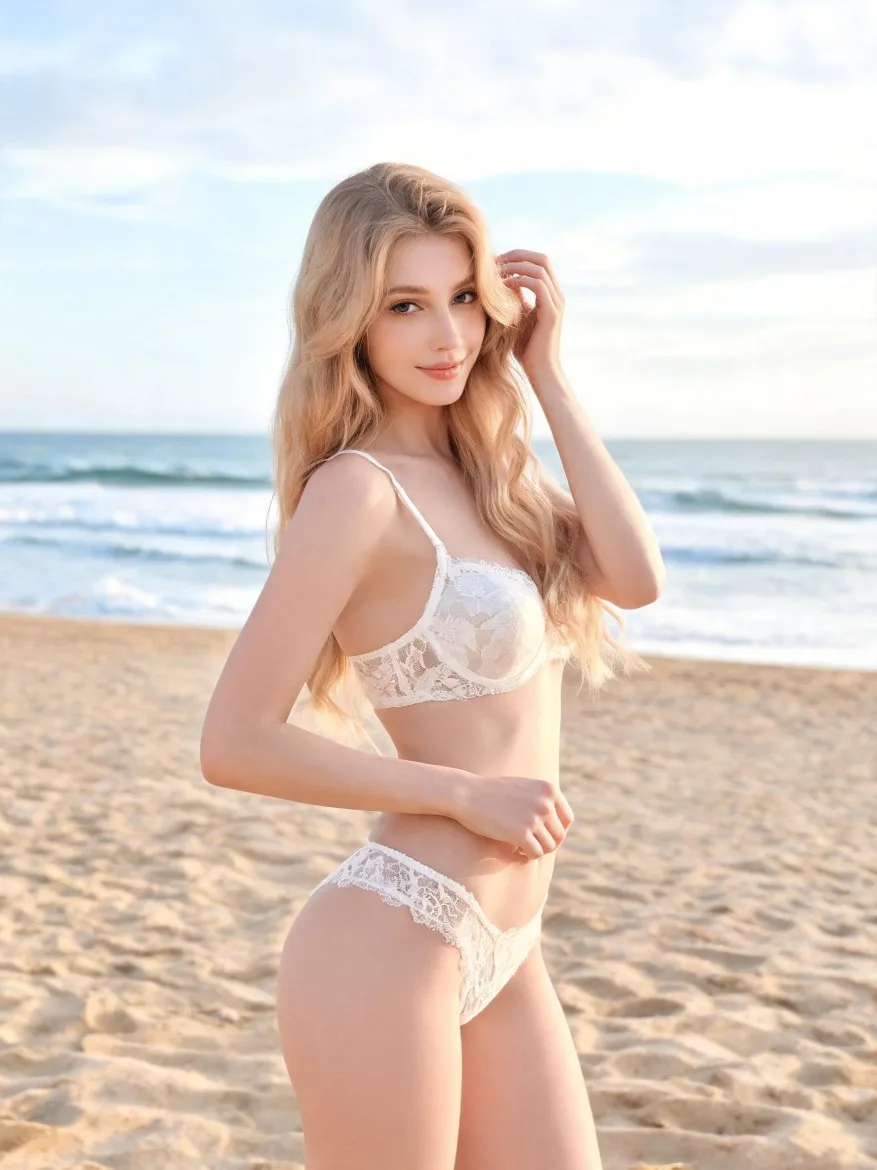
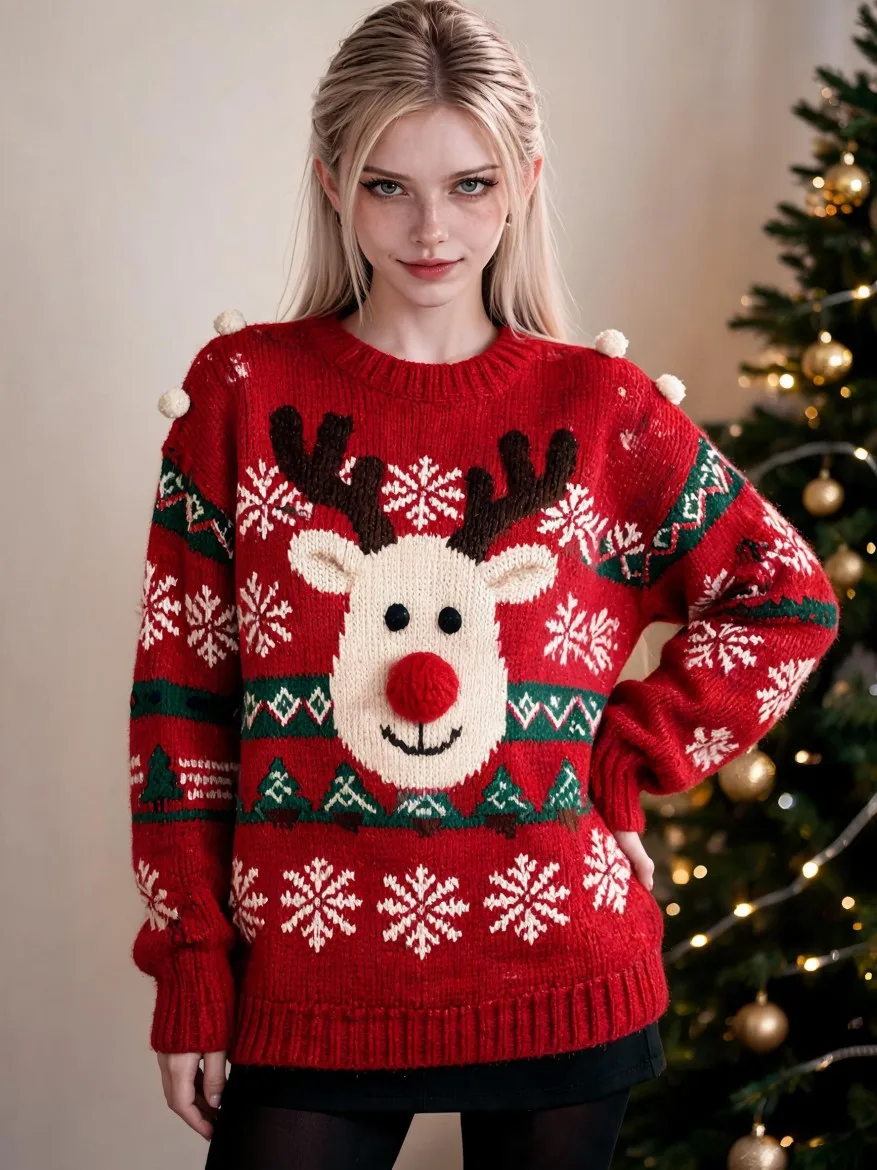
Choose a clear image of one adult, using your own photo or a reference you have permission to edit. A fitted, opaque top or dress helps show the existing silhouette. Heavy coats, crossed arms, and dramatic perspective make the change harder to judge because they obscure or distort the torso.
A front-facing or slightly turned portrait is a practical starting point. Keep the head and enough of the body in view to assess the shoulders, waist, and hips together. A tight chest crop gives you less context for deciding whether the proportions feel balanced.
For an original character, use an existing character image or select an already saved adult character in Idoli. There is no need to create a saved character just for a single photo edit. If you do use one, make sure the character selected in the interface matches the reference used in your prompt.
Try a Moderate Change First
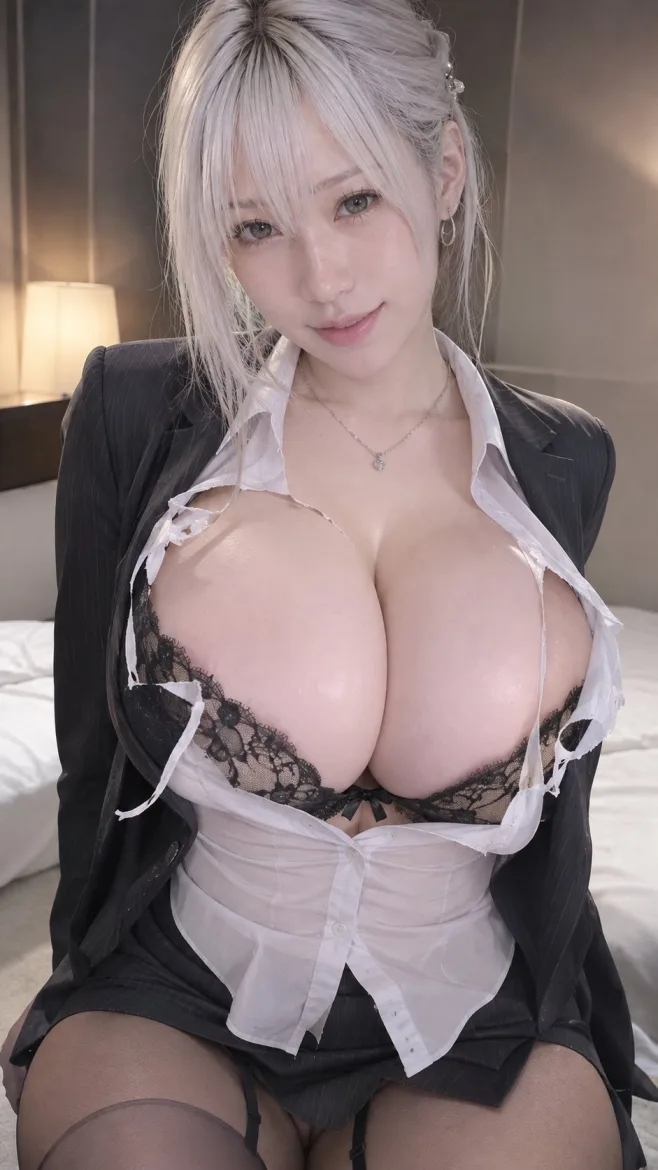
The AI Breast Expansion template provides a complete prompt for a clothed, moderately fuller silhouette. Add your reference in image generation and use the template as a starting point.
For a shorter request, try:
Give the adult woman in the reference a moderately fuller bust while keeping her recognizable face, waist, hips, shoulders, pose, and background. Preserve the outfit design and opaque chest coverage. Adjust the garment folds and seams naturally to the new silhouette. Show the face and torso together in a vertical 3:4 portrait.
Keep the outfit, pose, and camera angle similar for the first version. Changing the body, clothing, and perspective at once makes it harder to tell which change created the effect you like or dislike.
Look Beyond Size When Reviewing the Result
First, compare the generated face and overall build with the reference. If the waist has become narrower or the shoulders have changed, you are seeing more than the requested adjustment. You can ask to restore those features before judging the bust proportions.
Next, look at the garment. Seams should follow the new volume, folds should make sense, and straps should connect naturally. A neckline that suddenly drops or fabric that becomes transparent is an unwanted clothing change, rather than a useful silhouette preview.
Finally, check the pose and perspective. A stronger arch in the back or a lower camera angle can change the apparent proportions even when the underlying edit is small. For a clearer comparison, request the original posture and viewpoint.
Refine the Look with Focused Instructions
Idoli's image generation conversations remember context, so you can refine a result with a short follow-up. When several images are present, use the option to edit only the selected image to make the target clear.
If the change feels too strong:
Reduce the added fullness slightly. Restore the original waist and shoulder proportions, and keep the current outfit and pose.
If the clothing looks stretched incorrectly:
Correct the garment seams and folds around the bust. Keep the fabric opaque, preserve the original neckline, and retain the current body proportions.
If the model changed unrelated features:
Restore the reference face, hairstyle, waist, and hips. Limit the body change to moderate bust fullness.
Adjust one aspect at a time. If a long conversation starts combining incompatible body or outfit requests, begin a new conversation with the reference and a clear description of the version you want.
Adapt the Idea for an Adult Character
A character designer can use the same process without aiming for photographic realism. For an illustrated character, replace the template's photographic rendering instruction with the character's existing style:
Keep the reference character's 2D illustration style, facial design, hairstyle, and costume palette. Explore a moderately fuller bust on this adult character, adjusting the opaque costume panels and seams naturally while preserving the waist, shoulders, pose, and composition.
Keeping the costume recognizable helps you judge the body change separately from a wardrobe redesign. Once the proportions work, you can explore a different jacket, neckline, or costume silhouette as a second creative decision.
If you plan to reuse a version in later scenes, you can use the chosen image as a reference in character generation, fine-tune the generated character, and save it. You can then select and reference that saved character in image or video generation. A generated picture does not automatically become a saved character.
Frequently asked questions
Can I control how noticeable the change is?
Yes. Start with moderate fullness, then request a subtler or more noticeable silhouette. Adjust one aspect at a time while checking the surrounding proportions against the reference.
Do I need a saved Idoli character?
No. A reference photo can be the starting point for an image edit. A saved adult character is an optional route for continuing a character across later creative projects.
Can I keep the same face and outfit?
You can request that they remain consistent and check the generated result against the reference. The clothing folds may need to change to fit the new silhouette, and unrelated changes may require a follow-up correction.
Try Idoli for AI portraits & clips
Lock one idol, generate stills and short videos, publish with confidence.
Start creating