
Some people search for "image to video uncensored" because they want more freedom to create bold, imaginative videos and images. In practice, uploading a few reference photos can trigger a real-person flag. A prompt can also be rejected if the wording is too explicit. Can Idoli help with these two problems? Let's look at how each one works.
If you run into a real-person flag, you can use the reference photo to create a digital character in Idoli. Fine-tune the look, save the character, and select it when generating your video.
What if the prompt is rejected for being too explicit? Idoli does not offer pornographic content, so keep the prompt within its content guidelines. If your idea is a fashion runway or a swimwear party, describe the outfit, setting, and action you want to see.
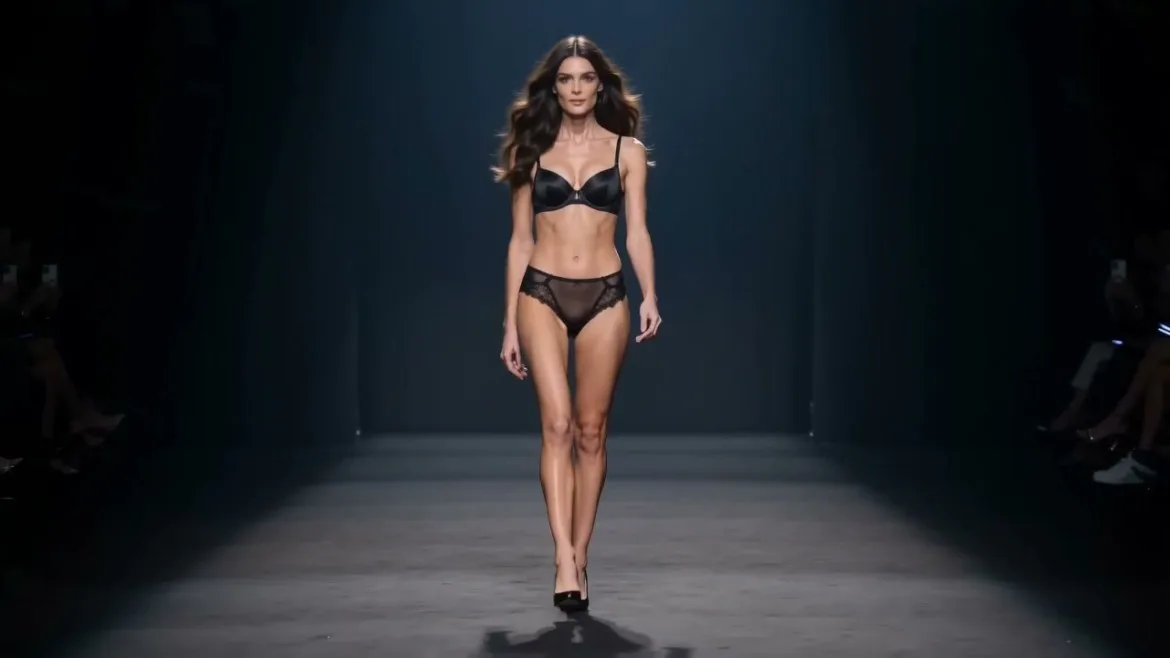
For this example, a group of lingerie models takes the train to a runway show. Two of them walk down the aisle in their show outfits, trade a few words in English, and crack up. Once you have the two characters, you can use the prompt to set up the carriage and direct the conversation.
1. Create and Save the Character
Use your own photo, a reference you have permission to use, or an original character image. Add the reference in Idoli's character generation mode and describe the look you want. You can start with a short prompt.
Generate a character based on the reference image.
Review the result and fine-tune details such as the hair or facial features. When you're happy with the look, save the character. You can then select it in image or video generation.
2. Put Two Characters in the Train Carriage
If you want to reuse both leads, create and save them separately. In video mode, match each selected character to its reference in the prompt and give each one a clear role. Here, the model in pink starts the conversation, the model in black replies, and the two laugh. Describe the rest of the group chatting near their seats to give the carriage some life.
The template sets up a six-second widescreen shot that moves from the carriage to the two leads. Choose a model that supports audio for the English conversation and ambient sound. Image to Video: Lingerie Models on Their Way to the Runway
3. Make Another Take with the Same Characters
Keep the same two leads and try a quieter exchange just before they arrive, or move the conversation to the backstage corridor. Select both saved characters again and describe the scene in full. Idoli's video mode uses the prompt and references for the current request.
Frequently asked questions
Can I start from an original character image?
Yes. Use that image as a reference in character generation, fine-tune the result, and save the character for later video use.
Is typing the character name enough?
Select the saved character in the interface and match that selection to the reference in your prompt.
Can I use the same character in another scene?
Yes. Select the saved character again and describe the new action, setting, and camera movement.
Try Idoli for AI portraits & clips
Lock one idol, generate stills and short videos, publish with confidence.
Start creating